Your Support Queue Is Costing You More Than You Think
As a SaaS founder, your time has a dollar value attached to it. So does your team's.
Every hour a developer spends on internal tools instead of shipping product is an opportunity cost. Every hour a co-founder spends answering the same five support questions is a strategy cost. And every hour a potential customer waits for a reply before making a buying decision is a revenue cost.
Customer support — specifically, first-line repetitive support — is one of the most expensive operational drains for early-stage SaaS companies. Not because individual tickets are costly, but because the cumulative time adds up to a serious resource leak.
The solution is an AI chatbot. But most founders assume it requires a developer, weeks of setup, or an enterprise budget. It doesn't. Not anymore.
This guide walks you through exactly how to deploy a working AI chatbot on your website — trained on your own content, embedded with one line of code, live in under an hour — without touching a line of code yourself.
Why This Problem Hits SaaS Harder Than Other Businesses
Support volume in SaaS scales directly with your user base. But your ability to handle it manually doesn't scale at the same rate. This creates a compounding cost problem that gets worse the faster you grow.
There are four specific pressure points where an AI chatbot delivers outsized value for SaaS teams:
- Pre-sales questions repeat constantly — Pricing, integrations, feature availability, trial limitations. Prospects ask the same questions before converting. These are predictable, documentable, and answerable instantly by a well-trained AI. Every unanswered pre-sales question is a potential lost conversion.
- Onboarding friction drives early churn — The first 30 minutes after signup are the highest-risk window for SaaS products. "How do I set up X?" and "Where do I find Y?" are the most common post-signup questions. An AI chatbot resolves these instantly — at 2 AM, on weekends, in any time zone.
- Support doesn't pause when your team does — SaaS users work globally. Bugs get noticed at midnight. Buying decisions happen on Sunday afternoons. Without always-on support, you're losing customers during the hours no one on your team is available.
- Developer time is your scarcest resource — Asking an engineer to build or maintain a chatbot is rarely the best use of their capacity. No-code deployment keeps your developers focused on the product.
These aren't edge cases. They're structural realities of running a SaaS business — and an AI chatbot addresses all of them without requiring you to hire ahead of revenue.
What a No-Code AI Chatbot Actually Does
Before walking through setup, it's worth being clear about what you're actually getting — because expectations determine outcomes.
- It answers questions using your content — You train the AI on your documentation, FAQs, policies, and product information. When a customer asks a question, the AI finds the right answer from your content and responds instantly — accurately, every time, without human involvement.
- It engages visitors in real time — The chatbot appears as a widget on your website. Visitors click it, ask their question, and get a response in seconds — not hours.
- It captures leads automatically — When a visitor wants to speak with a human or has a complex request, the chatbot collects their name, email, and question so your team has full context before they even open the conversation.
- It escalates when needed — For issues that exceed its training scope, it hands off to your team with the full conversation history intact, so nothing has to be repeated.
What it doesn't do: replace strategic customer conversations, handle emotionally complex escalations, or negotiate custom deals. Those require human judgment. The goal is to automate the repeatable so your team can focus entirely on the irreplaceable.
How to Add an AI Chatbot to Your Website: Step by Step
This is the exact process using customsupportai.com — four steps from signup to live chatbot, no developer required.
Step 1: Create Your Free Account and Set Up Your Chatbot
Go to customsupportai.com and create your account — no credit card required. The free plan gives you one AI chatbot, 200 messages per month, and 50 training pages (20 website pages + 30 document pages). It's enough to get live and validate the experience before committing to a paid plan.
Once inside the dashboard, your first action is creating your chatbot (also called an agent). Give it a name that fits your brand — something your customers will see when they interact with it. Define its role: is it a general support assistant, a pre-sales guide, an onboarding helper? This framing shapes how the AI responds to different types of questions.
This step takes roughly five minutes and sets the foundation for everything that follows.
Step 2: Train Your Chatbot on Your Content
This is the most important step — and the one most teams underinvest in. Your chatbot's quality is a direct function of your training content. The AI knows exactly what you teach it, nothing more.
customsupportai.com supports four training sources, and you can use any combination of them:
- Website links — Paste your website URL or specific page URLs (your FAQ page, features page, pricing page, help center) and the AI reads and learns from them automatically. This is the fastest way to train if you already have good content published.
- PDF and document uploads — Upload product documentation, onboarding guides, policy documents, or any PDF your support team currently references. The AI extracts and learns from the content directly.
- Custom text — Type or paste any information you want the AI to know — specific FAQs, scripted answers to common questions, internal knowledge that isn't published anywhere. This is useful for nuanced information that doesn't exist in document form yet.
What to include as a SaaS team:
- Your FAQ page
- Feature documentation and how-to guides
- Pricing and plan details (including what's included in each tier)
- Integration information
- Onboarding steps for new users
- Common troubleshooting scenarios
The quality rule: Vague content produces vague answers. If your documentation says "pricing depends on your needs" without specifics, the chatbot will give an unhelpful response — because that's all it has. Write your training content the way your best support person would answer the question: clearly, specifically, completely.
Spend the most time here. A well-trained chatbot on complete content will outperform a poorly trained chatbot on a premium plan every time.
Step 3: Customize Your Agent's Appearance
Your chatbot widget is a visible UI element on your website. It should look intentional — consistent with your brand, not like an afterthought.
In the Customization tab of your dashboard, you can configure:
- Colors — Match the widget to your brand's primary color so it looks native to your site, not bolted on from a third-party tool.
- Position — Bottom-right is the established standard. Users expect it there. Deviating from this convention typically reduces engagement without a meaningful benefit.
- Welcome message — What does the chatbot say when a visitor opens it? For SaaS, be specific about what it can help with. "Have a question about [Product]? I can help with pricing, features, or getting started." outperforms a generic "Hi there!" because it immediately signals relevant capability.
- Custom icon — On Pro and Pro Plus plans, you can upload your own icon to replace the default avatar. This is a small detail that meaningfully improves how polished the widget feels to visitors.
Take 10–15 minutes here. First impressions matter — a well-designed widget creates trust before a customer types their first message.
Step 4: Embed the Chatbot on Your Website — One Line of Code
This is the step most founders expect to be complicated. It isn't.
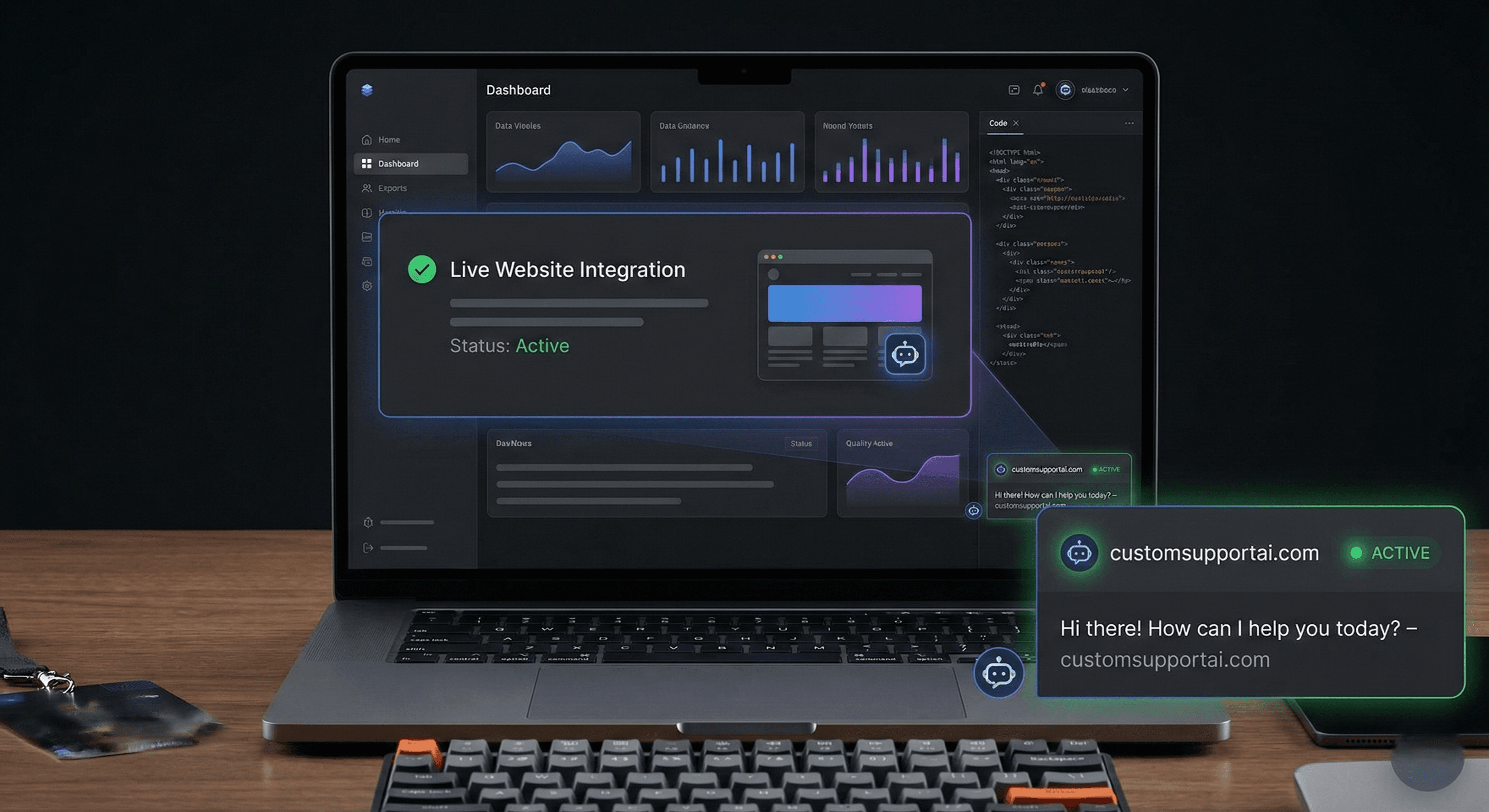
In the Customization tab, you'll find your embed code — a single line of JavaScript. Copy it. Then paste it into your website's HTML just before the closing body tag.
Where to paste it based on your platform:
- WordPress — Use a plugin like "Insert Headers and Footers" to paste the snippet in the footer without editing theme files directly.
- Webflow — Project Settings → Custom Code → Footer Code section.
- Shopify — Online Store → Themes → Edit Code → theme.liquid, just before the closing body tag.
- Wix — Settings → Custom Code → Body section.
- Next.js / React — Add it to your _document.js (Pages Router) or layout.tsx (App Router) in the body section.
- Plain HTML — Paste directly before the closing body tag in your HTML file.
After saving, reload your website. The chat widget appears in the corner within seconds. Click it, send a test message, and confirm it's working. That's it. Your AI chatbot is live.
Choosing the Right Plan for Your Stage
customsupportai.com offers three plans. Here's how to think about which one fits where you are:
- Free — $0/month: 1 chatbot, 200 messages/month, 50 training pages (20 website + 30 document). No credit card required. This is the right starting point if you want to validate the experience before committing — train it on your core FAQs, embed it on your site, and see how it performs with real visitors.
- Pro — $39/month: 1 chatbot, 5,000 messages/month, 1,000 training pages (400 website + 600 document), custom icon upload, priority support. This is the right plan for most growing SaaS teams — enough message volume and training capacity to handle real support load, and the customization to make the widget feel fully on-brand.
- Pro Plus — $99/month: 2 chatbots, 10,000 messages/month, 4,000 training pages (1,400 website + 2,600 document), dedicated support. This is the right plan if you're running multiple products, serving a high-volume user base, or need deep training capacity for complex documentation.
All plans include lead capture, analytics, and welcome message configuration. Start free and upgrade when your volume or training needs outgrow the current plan.
What Happens After You Go Live — Monitoring and Improving
Deployment is the starting point, not the finish line. Your chatbot improves over time — but only if you actively maintain it.
In the first two weeks:
Review every conversation the chatbot handled. Look for unanswered questions — these are content gaps. Add the missing information to your training sources and retrain. Look for incorrect answers — fix the source material. Look for unexpected escalations — determine whether they were avoidable with better content.
Ongoing metrics to watch:
- Containment rate — What percentage of conversations are fully resolved by the AI? A well-trained SaaS chatbot typically starts at 55–70% and improves with maintenance. Below that signals content gaps. Above 85% early on — double-check your escalation triggers are working.
- Unanswered question log — Every platform surfaces questions the AI couldn't handle. Review this weekly. It's a direct window into what your customers are confused about and where your documentation is incomplete.
- Customer satisfaction — Post-chat ratings tell you whether the experience is working. Declining scores signal a specific problem to investigate.
Schedule 30 minutes every two weeks for chatbot maintenance. This single habit separates chatbots that compound in value over time from those that plateau.
Real-World Impact: What SaaS Teams Experience
- Early-stage startup recovering founder time — A two-person SaaS team was spending 15 hours per week combined on support, mostly pre-sales questions and onboarding guidance for trial users. After training an AI chatbot on their documentation and FAQ, that dropped to four hours. The recovered time went directly into product development and outbound. The chatbot paid for itself in the first week.
- Scaling through a growth phase without hiring ahead — A SaaS company post-Series A projected support volume to triple within six months. They couldn't justify hiring three additional agents before revenue materialized. After deploying AI for first-line support, they scaled through the growth period with one additional part-time agent instead of three full-time ones. Customer experience was maintained. Cost structure stayed rational.
- Reducing trial-to-paid churn with always-on onboarding — A PLG SaaS product identified that most trial churn happened in the first 48 hours — users couldn't complete a key setup step and didn't get help fast enough. After deploying a chatbot trained specifically on onboarding steps, 48-hour churn dropped measurably. The chatbot functioned as a 24/7 onboarding guide for every trial user, regardless of when they signed up.
- Capturing leads outside business hours — A B2B SaaS team noticed strong website traffic between 9 PM and midnight — but low conversion during those hours because no one was available to answer pre-sales questions. After their AI chatbot went live, it handled those questions instantly, collected contact details for visitors who wanted to talk to sales, and notified the team each morning with a summary. Pipeline from off-hours traffic increased without any additional headcount.
Common Mistakes That Undermine Chatbot Deployments
- Going live before the knowledge base is ready — The single most common failure mode. An AI trained on incomplete content gives vague or wrong answers, and that damages trust immediately. Build your training content first, then launch.
- Ignoring the conversation log — Every unanswered question is a signal and an opportunity. Teams that review this weekly improve steadily. Teams that don't, plateau — or get worse as their product evolves and training content doesn't keep up.
- Failing to update after product changes — Every new feature, pricing change, or policy update needs to be reflected in your training sources. Stale information delivered confidently by an AI is worse than no information at all.
- Optimizing for deflection instead of resolution — The goal isn't to keep customers away from humans. The goal is to resolve their questions. Sometimes that means a human. A chatbot that protects your inbox at the cost of customer experience is not working.
- Skipping mobile testing — A large share of your visitors — including potential buyers — are on phones. Test your widget on mobile before going live. Confirm it's properly sized, the input is easy to use, and it doesn't block critical page content.
Key Takeaways
- The technical barrier is gone — One line of code. No developer. A working AI chatbot can be live on your website in under an hour.
- Training content is the product — The AI is just the delivery mechanism. The quality of your knowledge base determines the quality of your chatbot. Invest there first.
- Start on the free plan — No credit card required. Validate the experience with real visitors before upgrading.
- Four training sources give you flexibility — Website links, PDFs, documents, and custom text. Use whichever combination matches the content you already have.
- Maintenance compounds — Review your conversation log every two weeks. Add missing content. Update changed information. This habit is what makes the chatbot improve over time instead of plateauing.
- The cost of waiting is real — Every week without a chatbot is another week of founder time in the inbox, trial users churning because no one was there to help them, and prospects closing your tab because their question went unanswered.
Deploy Your AI Chatbot Today — No Engineering Required
You have the product knowledge. You have the documentation. The only barrier between you and a working AI chatbot is an afternoon and the right platform.
customsupportai.com was built for exactly this — SaaS founders and startup teams who need professional AI customer support without a developer project. Create your chatbot, train it on your content (website links, PDFs, documents, or custom text), customize the appearance, copy one line of code from the Customization tab, and paste it on your site.
Start on the free plan today — no credit card required. Upgrade when you're ready. Create your free account on customsupportai.com.